Accounts
Here are the details of your wallets and your assets on various exchanges.
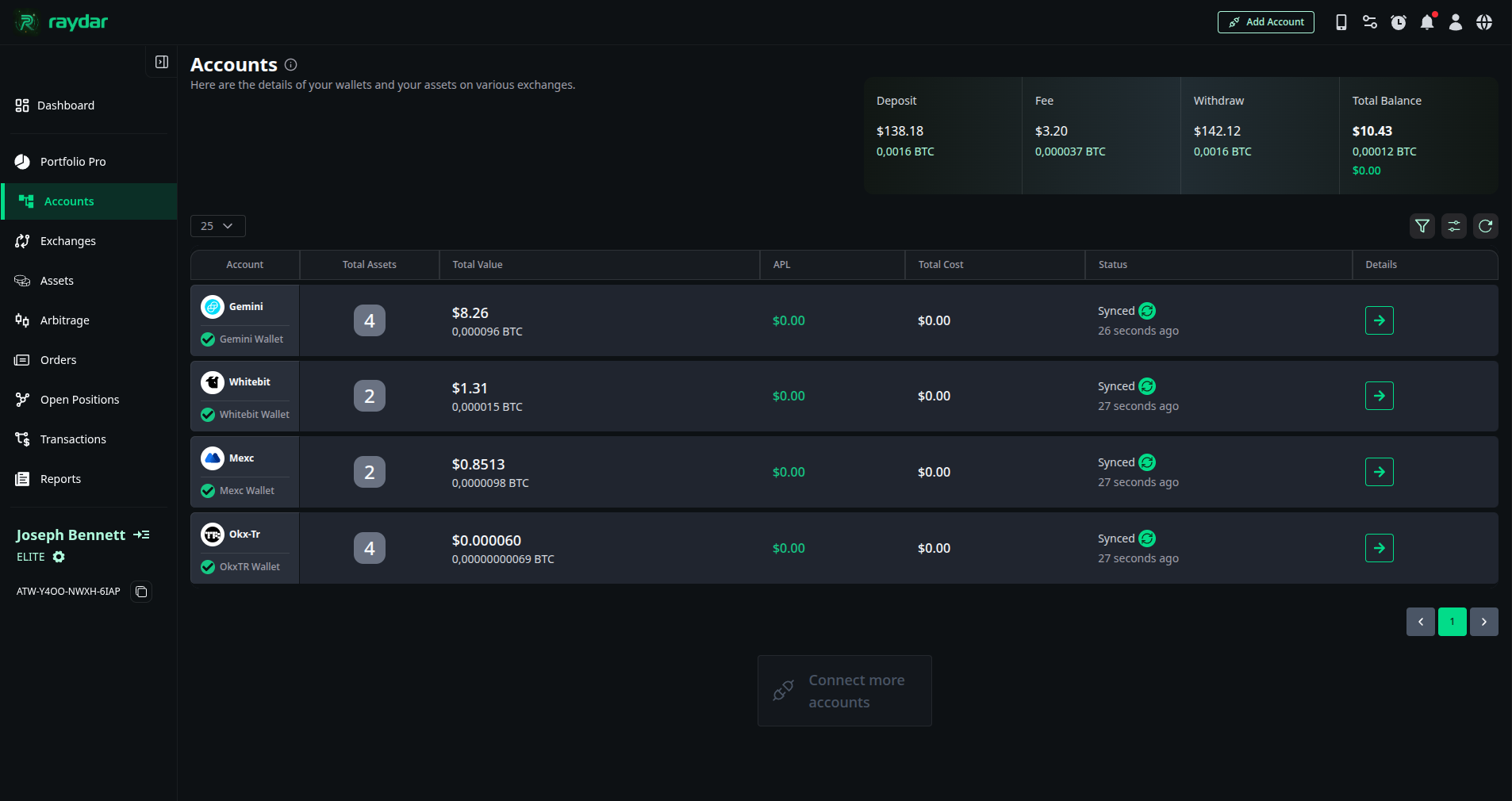
General Portfolio Summary
The panel in the top right corner of the screen consolidates and presents the total data of all your connected accounts (all exchanges). Values are displayed in both Dollar ($) and Bitcoin (BTC) terms:
- Deposit: Total amount of funds deposited into all exchanges.
- Fee: Total commission fees paid for all your transactions.
- Withdraw: Total amount withdrawn from exchanges.
- Total Balance: Your current total asset value.
Account List and Status Management
On the main screen, each exchange account you have added (e.g., Gemini, WhiteBit, MEXC) is listed in a separate row.
- Total Assets: The number of different assets (coins) held in that account (wallet) (e.g., 4 coins).
- Total Value: The total monetary value of that account.
- APL & Total Cost: Average Profit/Loss and total cost data.
- Status (Synchronization): Shows when the account was last updated.
- Manual Sync: You can manually update the data instantly by clicking the green refresh icon next to it.
- Go to Details: You can switch to the details page of the relevant account by clicking the arrow button on the far right of the row.
Account Details
When you click on an exchange account, the asset management panel specific to that account opens.
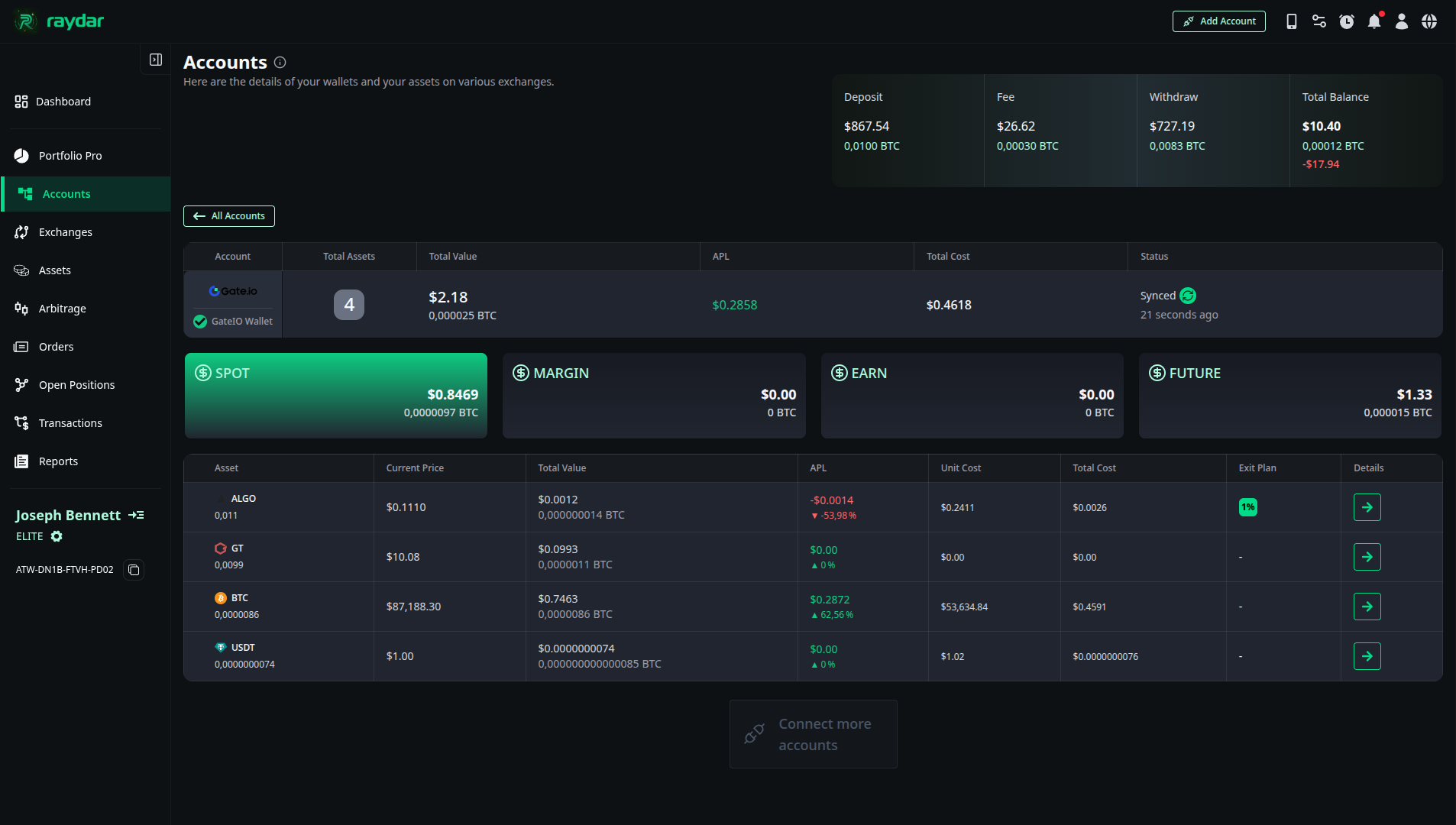
Wallet Balances
At the top of the page, you see the distribution of your assets on the selected exchange according to wallet types:
- SPOT, MARGIN, EARN, FUTURE: Total balance is displayed for each wallet type. When you click on the relevant box (e.g., SPOT), the list below is filtered.
Asset List and Exit Plan
Coins found in the selected wallet (e.g., AVAX, USD, SOL) are listed in a detailed table:
- Asset & Quantity: The name of the coin and the quantity you hold.
- Current Price: The current market price of the coin.
- Total Value: The total value of the quantity you hold.
- APL & Unit/Total Cost: Profit/Loss status and cost analyses.
- Exit Plan (Loss Exit Strategy): It is a calculation for reducing cost and moving into profit for your assets that are in loss.
- Appearance: If an asset is in loss, a green 1% button appears in this column.
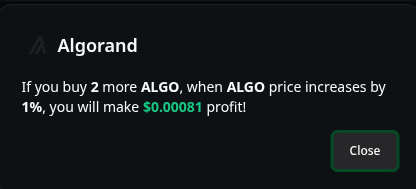
- How It Works: When you click this button, a window opens showing how much additional purchase is needed to average down your cost.
Asset Transaction History
When you click the detail (arrow) button next to any coin in the asset list (e.g., AVAX), your past transactions regarding that coin expand below the list.
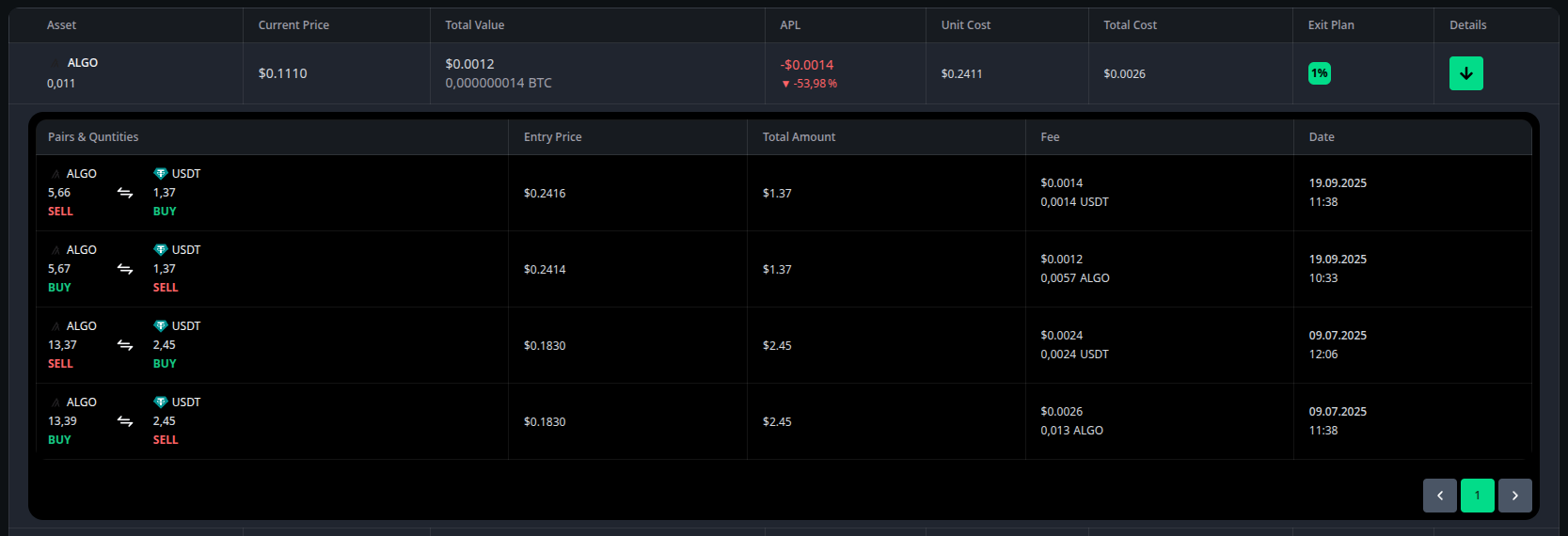
In this area, you can transparently view the buy-sell history of the relevant asset:
- Pairs & Quantities: Transaction pair and quantity (along with Buy/Sell direction).
- Entry Price: Your entry price for the trade.
- Total Amount: The total amount of the transaction.
- Fee: Commission paid for that transaction.
- Date: The date and time the transaction took place.