How to send an order ?
Second page under the Order section.
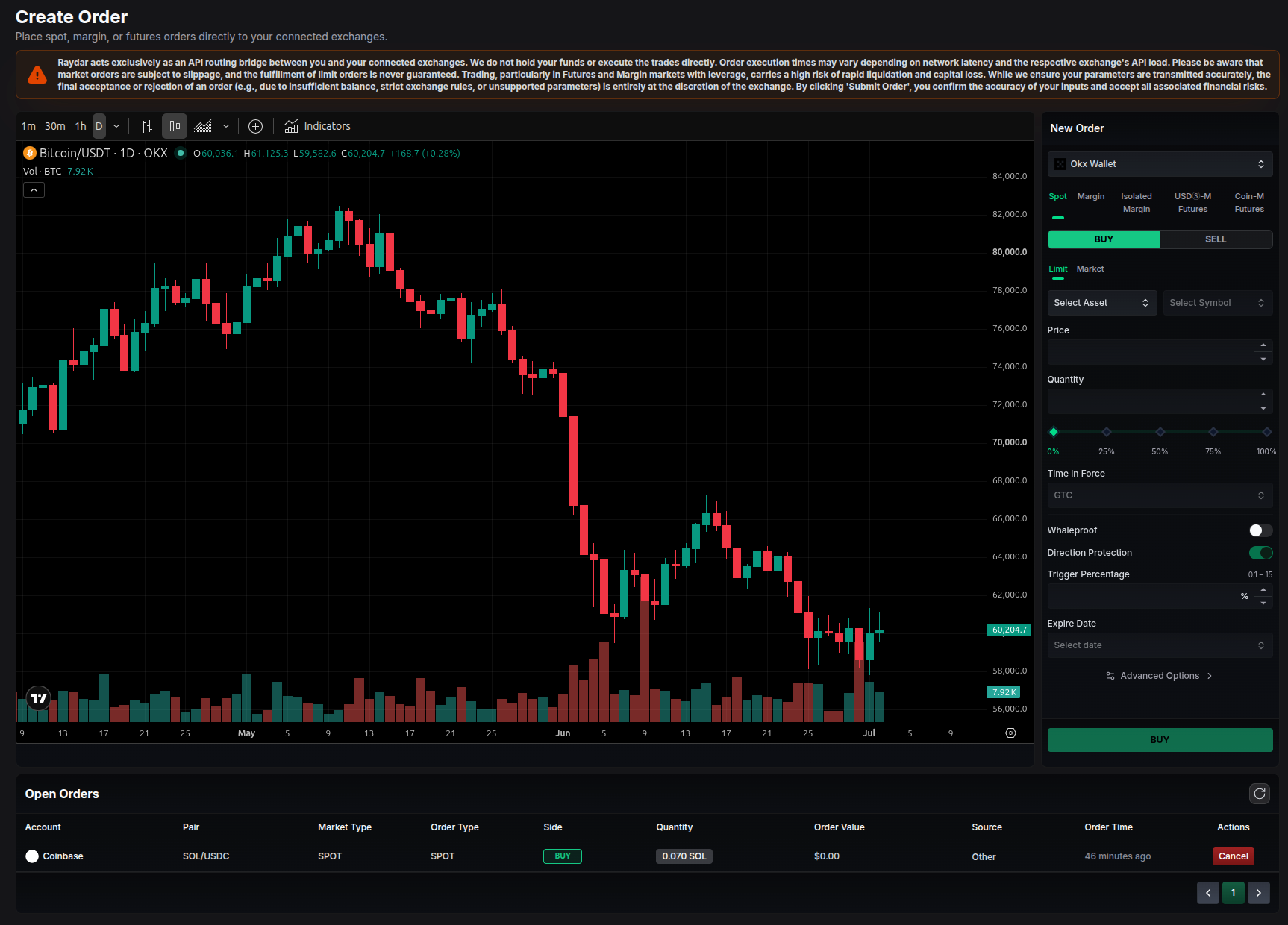
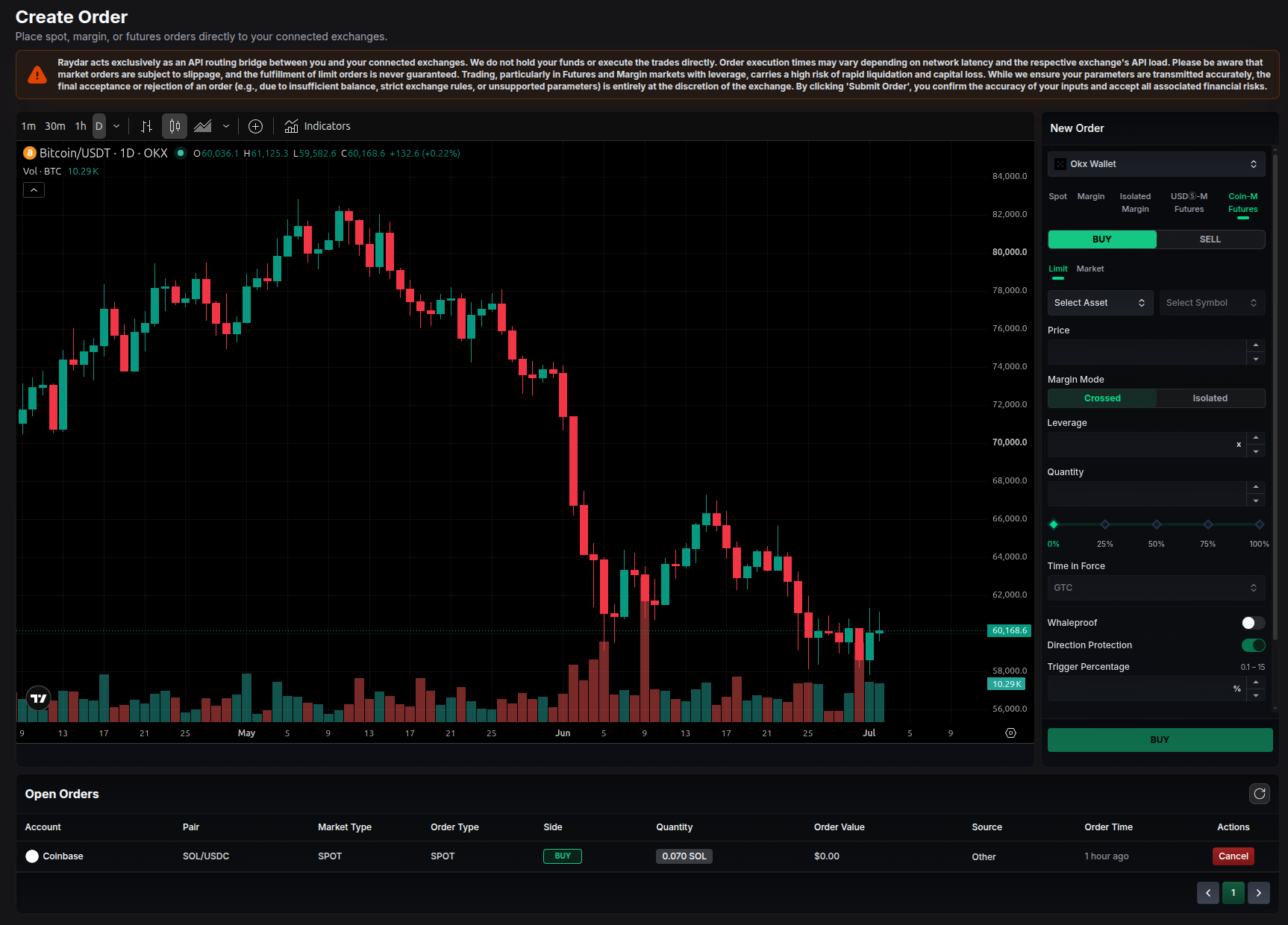
The Create Order screen lets you place Spot, Margin, and Futures orders directly to any of your connected exchanges from a single panel. The chart on the left helps you time your entry, while the New Order panel on the right is where you build and submit the order.
Getting Started
The core workflow is the same for every market type:
- Open the order panel: Click New Order in the top bar, or open the Orders page and use the New Order panel.
- Select Wallet: Choose the connected exchange account you want to trade from. The available markets and order options depend on the selected exchange.
- Choose the Market Type: Pick Spot, Margin, Isolated Margin, USDⓈ-M Futures, or COIN-M Futures.
- Set the Side: Choose Buy or Sell, then select the Order Type.
- Select Asset & Symbol: Pick the base asset and the trading pair (for example,
BTC/USDT). - Fill in the fields, review your inputs, and click the Buy / Sell button to submit.
Order Types
| Order Type | Description |
|---|---|
| Limit | Executes only at the price you set or better. Best for precise entries and exits. |
| Market | Executes immediately at the best available current price. Fast, but subject to slippage. |
| Stop Loss Limit | When the market reaches your trigger price, a limit order is placed to close the position and cap losses. |
| Take Profit Limit | When the market reaches your trigger price, a limit order is placed to lock in profit at your target. |
On Futures markets, Stop and Take Profit are also available as Market variants, which trigger a market order instead of a limit order.
Common Fields
These fields appear across most market types:
- Price: The price for Limit and trigger-based orders. Disabled for Market orders, which use the current price.
- Quantity: The amount of the asset to buy or sell. Use the 0 – 100% slider to quickly size the order as a percentage of your available balance.
- Time in Force: Controls how long the order stays active before it is canceled:
- GTC (Good ‘Til Canceled): Stays open until filled or you cancel it.
- IOC (Immediate or Cancel): Fills what it can immediately, cancels the rest.
- FOK (Fill or Kill): Fills the entire order at once or cancels it completely.
- Post Only: Ensures the order is added to the order book as a maker order (Futures markets also support GTD for a fixed expiry date).
Placing an Order by Market Type
Each market type shares the workflow above but exposes its own set of fields. Select a tab below for the details.
Spot
Spot trading is the simplest market type: you buy or sell an asset outright using the balance you already hold, with no borrowing or leverage.
- Asset & Symbol: The coin and pair you want to trade.
- Order Type: Limit, Market, Stop Loss Limit, or Take Profit Limit.
- Price & Quantity: Set your target price (for Limit orders) and the amount to trade.
- Time in Force: GTC, IOC, FOK, or Post Only.
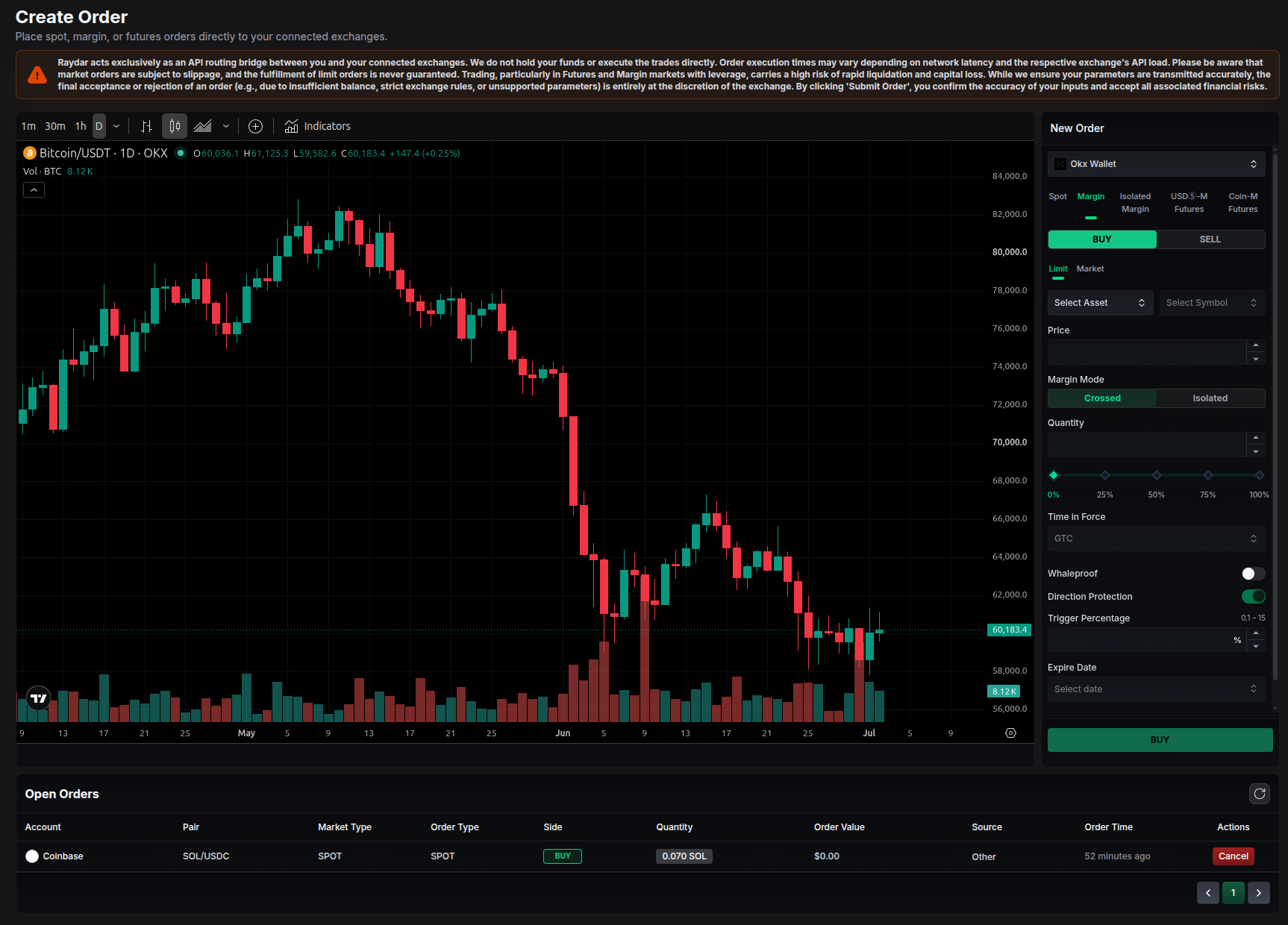
Margin (Cross)
Margin trading lets you borrow funds from the exchange against your cross-margin balance to open larger positions. In cross mode, all assets in the margin account act as shared collateral.
- All Spot fields apply, plus:
- Borrowing: The exchange can automatically borrow the required funds when you open the position and repay them when you close it, depending on the exchange’s support.
- Shared Collateral: Your entire cross-margin balance backs the position, which reduces the chance of liquidation on any single pair but exposes the whole account to risk.
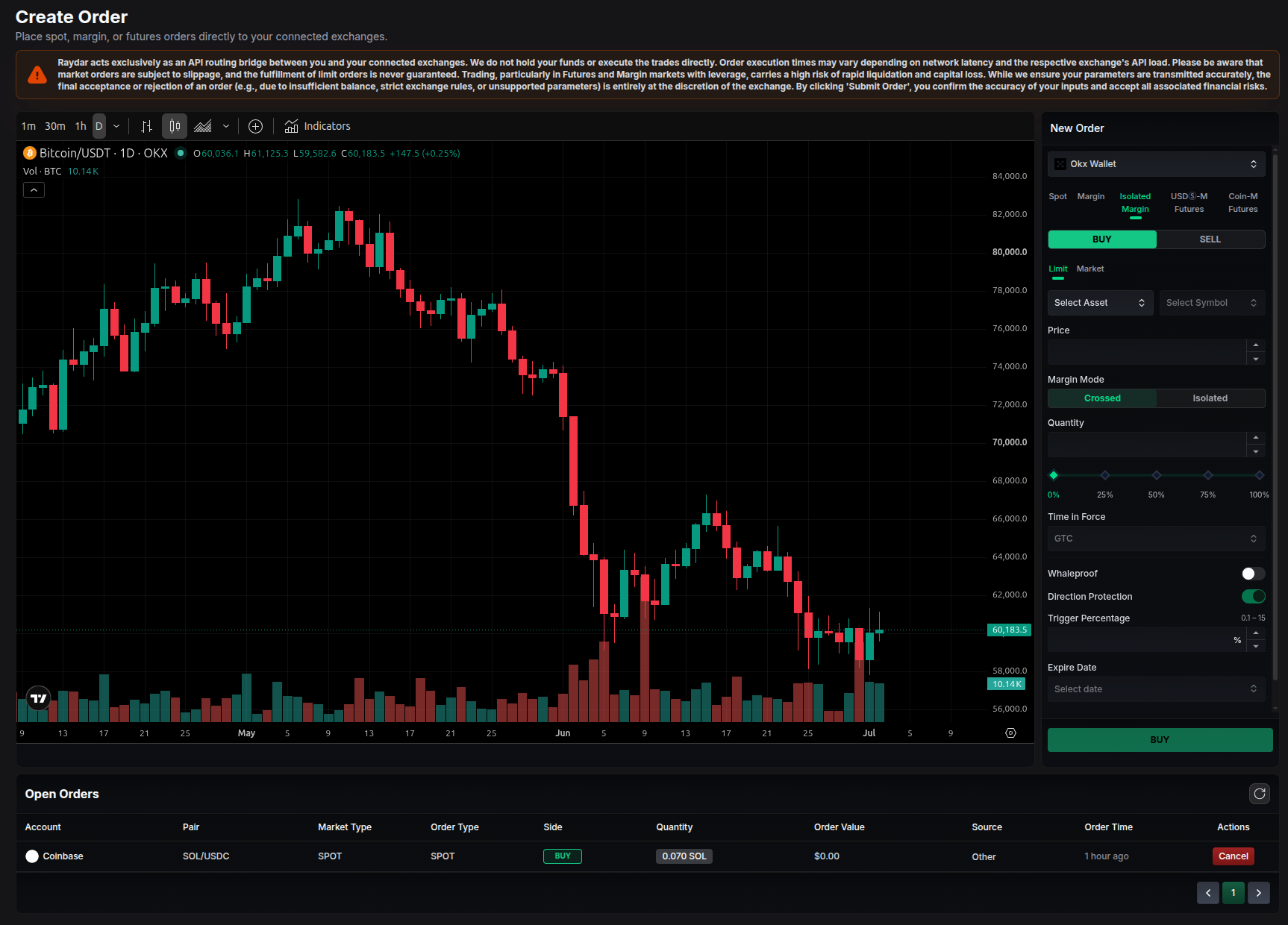
Isolated Margin
Isolated Margin works like Margin, but the collateral and risk are confined to a single pair. Only the margin you allocate to that position can be liquidated, protecting the rest of your account.
- All Margin fields apply, plus:
- Isolated Risk: Each position has its own dedicated collateral. A liquidation affects only that pair, not your other balances.
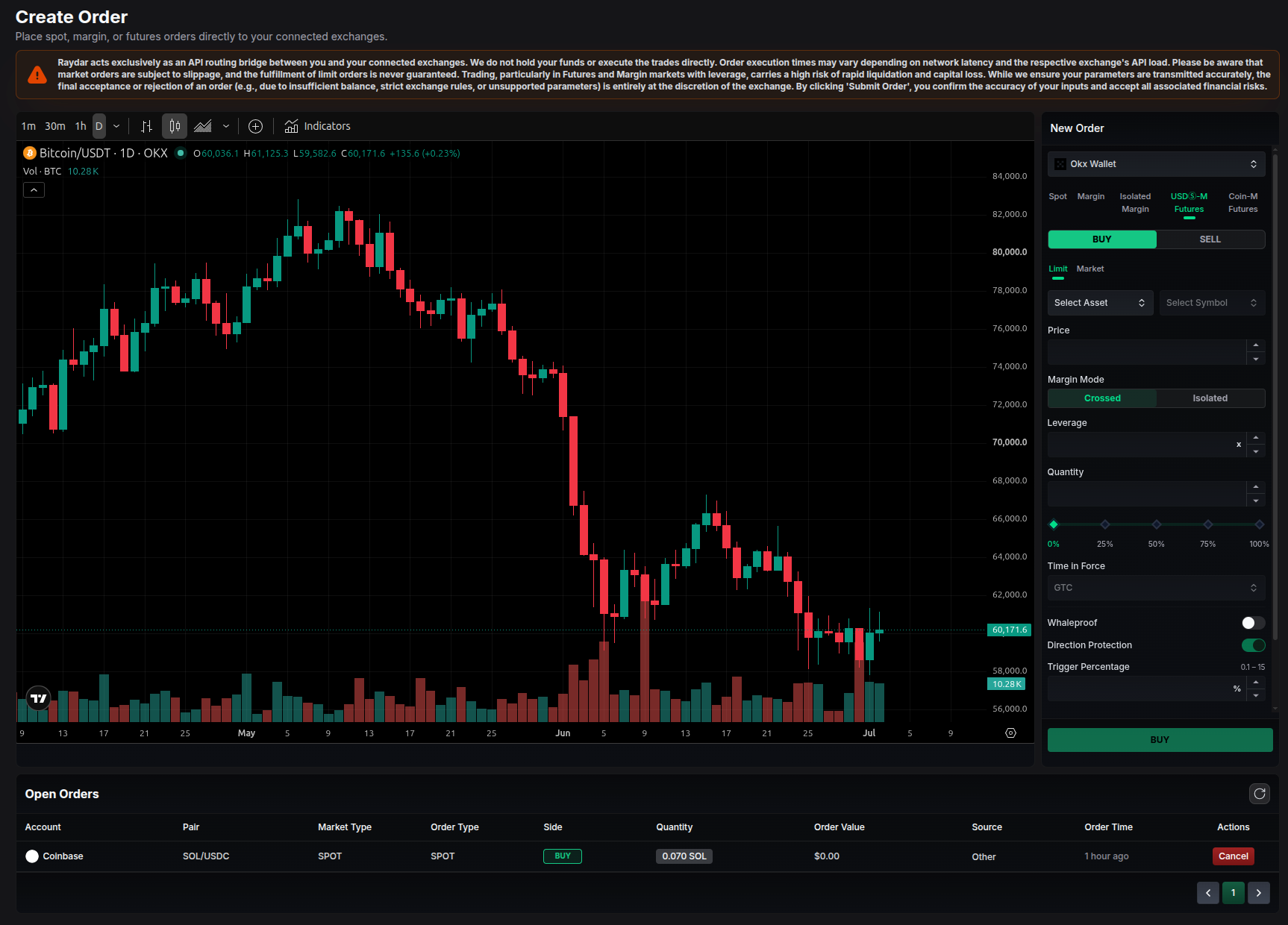
USDⓈ-M Futures
USDⓈ-M (linear) Futures are contracts margined and settled in a stablecoin such as USDT or USDC. These markets add leverage and position-management controls.
- Leverage: Set the multiplier applied to your position size. Higher leverage increases both potential gains and liquidation risk.
- Margin Mode: Choose Cross (shared account collateral) or Isolated (collateral limited to the position).
- Position Side: Long, Short, or Both (hedge mode), depending on the exchange.
- Reduce Only: When enabled, the order can only shrink an existing position, never open or increase one.
- Working Type: Choose whether triggers are evaluated against the Mark Price or the Contract (Last) Price.
COIN-M Futures
COIN-M (inverse) Futures are margined and settled in the base coin itself (for example, BTC for a BTCUSD contract) rather than a stablecoin. They share the same controls as USDⓈ-M Futures.
- Same fields as USDⓈ-M Futures: Leverage, Margin Mode, Position Side, Reduce Only, and Working Type.
- Coin-Margined: Profit, loss, and collateral are denominated in the base coin, so your settlement value moves with the coin’s price.
- Position Side: Long and Short are always available; Both (hedge mode) may be unavailable on some exchanges.
Advanced Options
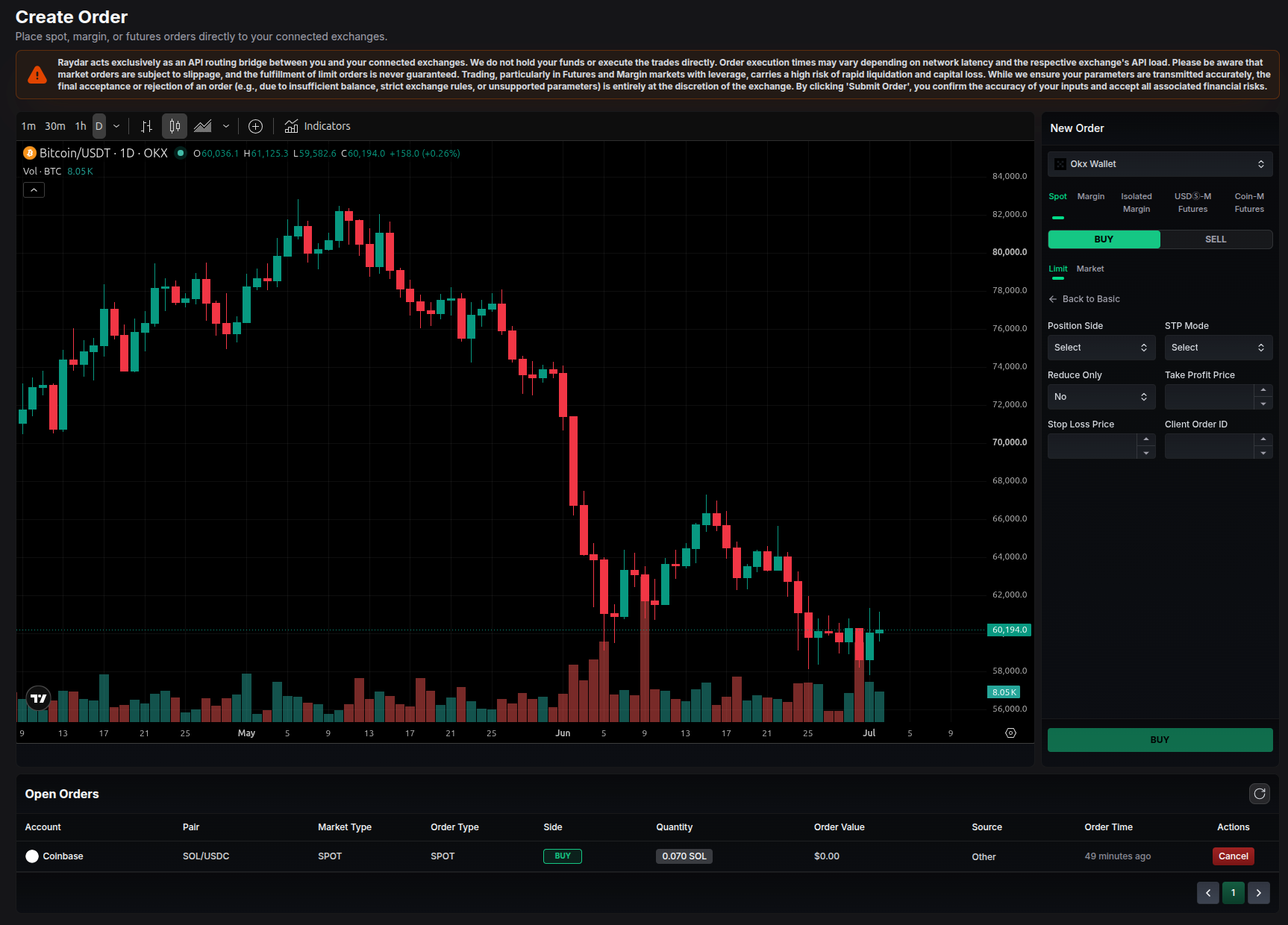
Click Advanced Options to expand additional parameters for finer control over how your order is submitted:
- Reduce Only / Post Only: Restrict the order to closing positions or to maker-only execution.
- Working Type: Select the reference price used to evaluate triggers on Futures orders.
- Time in Force overrides and other exchange-specific parameters.
Tracking & Canceling Orders
Below the chart, the Open Orders table lists every order that has not yet been filled or canceled:
- Account & Pair: The exchange wallet and trading pair.
- Market Type & Order Type: For example, Spot / Limit.
- Side & Quantity: Buy or Sell, and the amount.
- Order Value & Source: The value at submission and where the order originated.
- Order Time: How long ago the order was placed.
- Actions: Click Cancel to withdraw a pending order from the exchange.
For your complete order history, statistics, and per-order execution details, see the Order History page.