Portfolio Pro
Metrics that allow you to take a deeper look into your accounts.

Account Selection (Accounts)
At the top of the screen, the exchange accounts you have connected to Raydar are listed as cards.
- How It Works: When you click on the account you want to examine (e.g., Gate.io), the metrics below instantly update to show data specific to that account.
Account Summary & Metrics
The financial performance and transaction history of your selected exchange account are presented in detail in the following boxes:
- Asset Performance (Assets):
- Assets: Total number of assets held in the selected account.
- ▲ (Green): Number of assets in profit and the total profit amount.
- ▼ (Red): Number of assets in loss and the total loss amount.
| Total Balance: | Deposit: | Withdraw: | Fee: |
|---|---|---|---|
| Your total current balance on the relevant exchange. | Total amount of funds deposited into this account to date. | Total amount of funds withdrawn from this account. | Total commission paid for your trades on this exchange. |
Wallet Balances and Portfolio Analysis
In this section, a detailed balance breakdown of the selected exchange account and the general health status of your entire portfolio are analyzed.
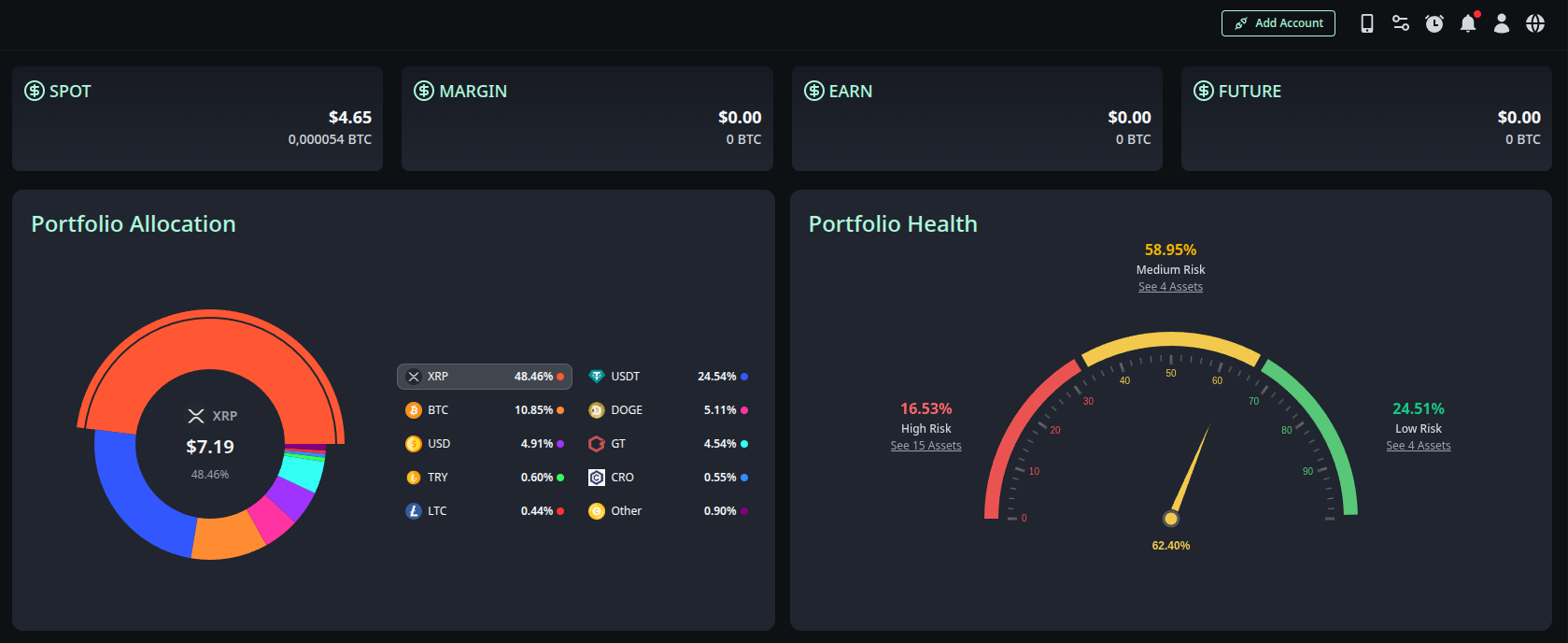
Wallet Balances
In the middle strip of the screen, the balances of sub-wallets (Sub-accounts) belonging to the exchange you selected above are listed separately:
- Categories: SPOT, MARGIN, EARN, and FUTURE.
- Displayed Data: The total asset amount in each wallet is shown in both Dollar ($) and Bitcoin (BTC) terms.
- Detail View: When you click on any of these boxes (e.g., SPOT), the detailed management panel for that wallet opens (Explained below).
Portfolio Allocation
The chart on the bottom left shows the total distribution of your assets across all exchanges added to Raydar.
- Analysis: You can track how much of each coin you hold in total and its weight in your portfolio (as a percentage) via the pie chart.
Portfolio Health
The gauge panel on the bottom right measures the risk level of all your investments.
- Risk Indicator: Displays the general risk status of your portfolio on a gauge.
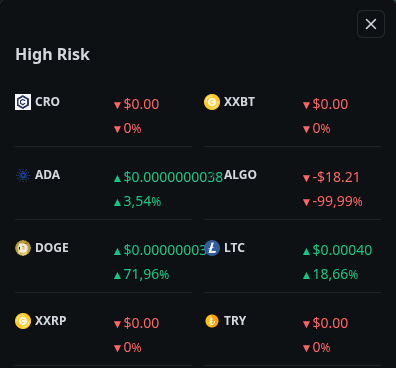
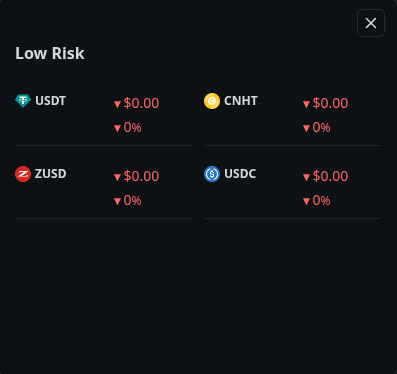
- Risk Groups: Your assets are classified as High Risk, Medium Risk, and Low Risk according to their volatility.
- Details (See Assets): When you click on the “See … Assets” link under the risk groups, a window opens showing which assets are included in that risk group.

Wallet Details
When you click on the balance boxes above (SPOT, MARGIN, etc.), a detailed window for the relevant wallet opens. This window consists of three main tabs:
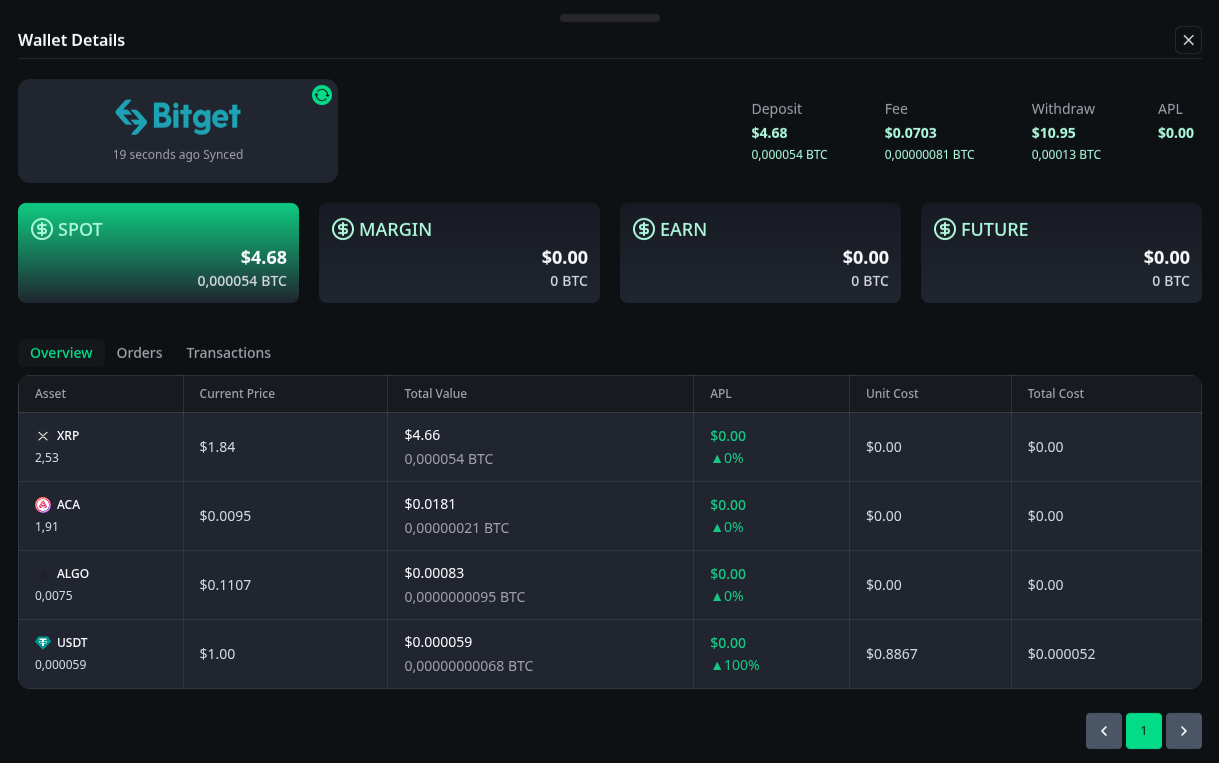
Overview
This tab lists the quantity, current prices, and cost status of the coins found in the relevant wallet.
Note: Detailed explanation of the data in this area is available in the documentation.
Orders
This tab lists your open or past orders (Limit, Market, etc.) in the selected wallet.
Note: Order types and usage scenarios are explained in the documentation.
Transactions
This tab shows all transfer (Deposit/Withdraw) and transaction history that occurred on the relevant exchange.
Note: Transaction history breakdowns are provided in the documentation.